Thursday, March 21, 2013

Printing in the Library (Pasco Campus)

New:  Printing from most of the computers in the Library.
  • Students must log into the computers with SID and PIN;
  • Students must choose desired printer every time, the default printer differs on each computer;
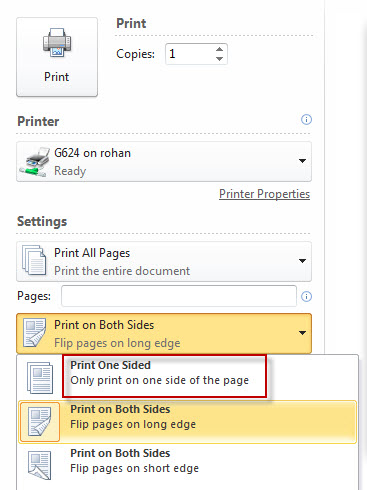
  • When printing, students can choose NetPrint printers (designated with NP) DIRECTLY and single-sided printing if desired. See image below. There is No Need to login to the NetPrint web interface and upload files. 
  • 75 page limit - split larger files into multiple print jobs.

More Information about cash printing (G624, G699, and G530; Pay cash at Circulation) :
  • Students will NOT be charged for citation, abstract, library catalog, or KIOSK printing.

  • Students will be charged for printing of full-text articles, email, assignments, web pages, etc. in the main library on the Pasco campus.

  • G624 and G699 are black & white printers ($.05 per page, defaulted to "Print on Both Sides")

  • G530 is the color printer ($.25 per page, defaulted to print Single-sided)

  • You can pick up your printings at the Circulation Desk. Let us know the number of the computer (e.g. Index 8, epicenter 16, etc.) that you printed from.

To print PowerPoint slides 2-6 slides on one side of a page, print as "Handouts".


The college encourages double-sided printing to save paper and most instructors are aware of that. However, if for some reason, you would like to print single-sided, you can change the default.

Using the NetPrint Web Interface (from your laptop or any non-library computer with an internet connection)
(G841 black & white, G866 color; every currently registered student gets $12 "free" credit for printing.)
  • NetPrint Web Interface Login
  • NetPrint Information page
  • $12 "free" credit per quarter
  • The black & white printer defaults to double-sided printing and it cannot be changed using the NetPrint web interface
  • Limited file types accepted using the NetPrint web interface. A lot of files can be converted to XPS files, which works with the NetPrint web interface. If you need help, ask a reference librarian.
  • NetPrint Demo (Update: All student NetAccounts are automatically activated now. Please skip the first part of the video.)

y.y.

Tuesday, January 15, 2013

Finding Required Textbooks for Classes

After you have registered for your classes, you might want to find out what books are needed. Instructors send the information to the CBC bookstore before the quarter starts. You can search for the textbooks at the CBC bookstore website. You may rent if available. Renting can be cheaper but you have to mail it back after the rental period. You may also use the library reserve copy if available, which is also usually in-library use only. See detailed information about your options below.

I. Steps to find out required textbooks by course
1. Go to http://www.cbcbookstore.com/
2. Scroll down and click on the blue "textbooks" button above "Store Info"
3. Check the checkbox and click "Continue to Textbook Ordering" (You don’t have to order online.)
4. Click on the quarter that you want to find out about. (e.g. "Winter 2013")
5. Select the department. e.g. "ENGL&", click on it to select the specific class
6. Classes will appear on the right side window that says "Your Schedule".
7. Click on the black "Find Books" button
8. You should see the list of textbooks, note the edition and ISBN.

II. If the book is too expensive,  you can rent textbooks if available.
Go to http://cbc.rentsbooks.com
You can search for the book by ISBN, Title, etc. Note that not all textbooks are available for renting. Renting can be cheaper but you have to mail it back after the rental period. Amazon.com sometimes also offer rental options.

III. At the library, we have a course reserves (library use only) which includes some textbooks. We don't have textbooks for all classes on reserve. You should also try searching by the book's title in the catalog to see if there is another copy in a different location. Ask for "Reserve Circ" items at the Circulation desk. Ask a librarian if you need help with the search.

IV. Resource center provides short-time no-interest book loans for students. According to their director, “there is no interest and no fee and no low income requirement, but students will have to show financial ability to pay back the loan by the end of the quarter. This would be helpful for some students who are working but could benefit from paying the tuition in three installments over the summer. Students who have financial aid already should not apply for the loan unless for some reason their aid payment did not arrive on time and they need help."

V. Finally, you may want to confirm with your instructor that the book you are ordering is the right one. Sometimes your instructors might even allow you to use an older edition, which could be much cheaper. Some instructors might also put an extra copy of the textbook on reserve at the library if they know that the bookstore has run out of copies. To find contact information of your instructor, go to the CBC Staff Directory.

y.y.

Thursday, January 3, 2013

BBC Shakespeare Online Videos

The library has added streaming video productions of several of Shakespeare's greatest plays.  Originally produced by the BBC for television these feature brilliant actors including Anthony Andrews, Claire Bloom, Brian Glover, Anthony Hopkins, Bob Hoskins, Derek Jacobi,  Helen Mirren, and Patrick Stewart.  Requires Adobe Flash player.

Monday, December 3, 2012

New Gale Virtual Reference title - Encyclopedia of Drug Policy

Encyclopedia of Drug Policy. Mark A. R. Kleiman and James E. Hawdon, eds. Sage, 2011. 2 vols. in print. Offers broad, concise and readable coverage of United States drug policy, along with some coverage of the drug policies of select other nations. From the introduction: "entries can be grouped into six broad categories: drugs, laws and policies, organizations and individuals, control strategies and their underlying theories, drugs in select countries, and drugs and other social problems." Other titles in the Gale Virtual Reference library look at drug issues from health, addiction, social problems, law enforcement, historical and scientific views.

Wednesday, November 14, 2012

New Gale Virtual Reference Books!

Encyclopedia of Gender in Media. This "does a remarkable job of providing an orientation to two vast topics--media (film, television, radio, music, reading material, and new media, represented by online sources), and gender (female, male, lesbian, gay, transsexual)--in slightly over 170 entries." [CHOICE, Nov. 2012] While this includes many of the topics one might expect - advertising, the Beauty Myth, television, stereotypes - it also includes blogs, MMORPGs, Reality TV Makeover shows, Facebook, Video Games, and YouTube.


Encyclopedia of Modern China. Ed. by David Pong. Gale, 2009. Over 900 articles, 2000 pages, nearly 500 authors, hundreds of illustrations including many full-color photographs and 53 primary source documents cover China "... from 1800 to the present; topics range from the daily life of common folks to the ever-changing structure of the banking system that is part of the engine of China’s recent transformation." Rated 'outstanding' by the RUSA and CHOICE and honorable mention for the 2010 Dartmouth prize (the winner was the Encyclopedia of Human Rights, also available from CBC Library).

Friday, November 9, 2012

Double Sided Brochure

This how-to is designed for Word 2007 but all of the instructions work for Word 2010: http://www.microsoft.com/education/en-us/teachers/how-to/Pages/theme-related-brochure.aspx

Once you have created your brochure you may print it in color in the library.  Double-sided or duplex printing in color is not available from NetPrint - you must use the printer behind the Circulation desk:

File > Print
1) Select printer G835
2) Choose to Print on Both Sides Flip pages on short edge


Friday, November 2, 2012

EBSCOhost Mobile

Automatic Mobile Access (for any mobile device)

EBSCOhost Mobile’s new smart technology auto-detects when an user is visiting from a mobile device and auto-directs the user to the same database in a clean, frameless search environment that is much easier to work with on the small screen. (Off campus, you will need to log in with your MyCBC ID and PIN. )

EBSCOhost App (for iPhone, iPod Touch, and Android Phones)

If you have an iPhone or iPod Touch or an Android Phone - there's an EBSCOhost app for that. The advantage of using the app as opposed to using the mobile site is that you can get an authentication key and don't need to log in (when off campus) every time with the CBC Library Database password for 9 month. The tradeoff is that you will have to spend the time to download the app first and get the authentication key following the steps below: 

Step 1: Log in to the CBC EbscoHost website using either the mobile site with your mobile device or regular EBSCOhost with a desktop computer

Step 2:  Click on the link at the bottom of the screen that says 'EBSCOhost iPhone and Android Application'

Step 3: Enter your email address (this must be accessible from your iPhone/Android Phone) to send yourself an email with a link to the app store and an authentication key.

Step 4: From your device, access the email account used in the previous step.

Step 5:  Download the app (If you haven’t already).

Step 6:  Tap the “authentication key” link in your email, which will authorize your device for use with CBC’s EbscoHost databases for 9 months before you'll need to acquire a new key.

They have a help page if you have any difficulties.